本教程演示了如何使用NumPy、imageio、Matplotlib和SciPy读取和处理X光图像。您将学习如何加载医学图像,聚焦于特定部分,并使用高斯、拉普拉斯-高斯、Sobel和Canny滤波器进行边缘检测,来直观地比较它们。
X光图像分析可以成为您数据分析和机器学习工作流程的一部分,例如,当您构建一个算法来帮助检测肺炎时,这是Kaggle竞赛的一部分。在医疗保健行业,医学图像处理和分析尤其重要,因为据估计,图像占所有医疗数据的至少90%。
您将使用美国国家卫生研究院(NIH)提供的ChestX-ray8数据集中的放射学图像。ChestX-ray8包含超过10万张来自3万多名患者的去标识化X光图像,格式为PNG。您可以在NIH的公共Box存储库的/images文件夹中找到ChestX-ray8的文件。(更多细节,请参阅2017年在CVPR(一个计算机视觉会议)上发表的研究论文。)
为方便起见,少量PNG图像已保存在本教程的存储库中的tutorial-x-ray-image-processing/目录下,因为ChestX-ray8包含数GB的数据,您可能会发现分批下载有困难。

先决条件
读者应具备Python、NumPy数组和Matplotlib的一些知识。为了帮助您回忆,您可以参考Python和MatplotlibPyPlot教程,以及NumPy快速入门。
本教程使用的以下软件包
imageio用于读写图像数据。医疗保健行业通常使用DICOM格式进行医学成像,而imageio非常适合读取该格式。为简化起见,本教程将使用PNG文件。
Matplotlib用于数据可视化。
本教程可以在隔离环境中本地运行,例如Virtualenv或conda。您可以使用Jupyter Notebook或JupyterLab来运行每个笔记本单元格。
目录
使用
imageio检查X光片将图像组合成多维数组以展示进展
使用拉普拉斯-高斯、高斯梯度、Sobel和Canny滤波器进行边缘检测
使用
np.where()对X光片应用掩码比较结果
使用imageio检查X光片
让我们从一个简单的例子开始,只使用ChestX-ray8数据集中的一张X光图像。
文件 — 00000011_001.png — 已为您下载并保存在/tutorial-x-ray-image-processing文件夹中。
1. 使用imageio加载图像
import os
import imageio

DIR = "tutorial-x-ray-image-processing"

xray_image = imageio.v3.imread(os.path.join(DIR, "00000011_001.png"))
2. 检查其形状是否为1024x1024像素,并且数组由8位整数组成
print(xray_image.shape)
print(xray_image.dtype)
(1024, 1024)
uint8
3. 导入matplotlib并在灰度颜色映射中显示图像
import matplotlib.pyplot as plt

plt.imshow(xray_image, cmap="gray")
plt.axis("off")
plt.show()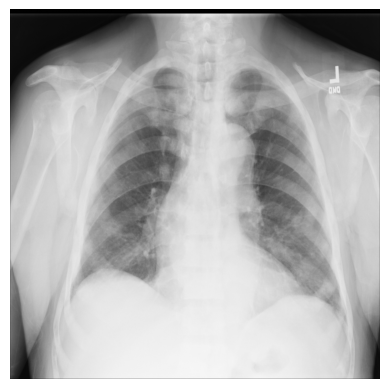
将图像组合成多维数组以展示进展
在下一个例子中,您将使用9张来自ChestX-ray8数据集的1024x1024像素的X光图像,这些图像已从数据集中某个文件中下载并解压。它们编号从...000.png到...008.png,我们假设它们属于同一位患者。
1. 导入NumPy,读入每张X光片,并创建一个三维数组,其中第一个维度对应于图像编号
import numpy as np
num_imgs = 9

combined_xray_images_1 = np.array(
    [imageio.v3.imread(os.path.join(DIR, f"00000011_00{i}.png")) for i in range(num_imgs)]
)
2. 检查包含9张堆叠图像的新X光图像数组的形状
combined_xray_images_1.shape(9, 1024, 1024)请注意,第一个维度的形状与num_imgs匹配,因此combined_xray_images_1数组可以被解释为2D图像的堆栈。
3. 您现在可以使用Matplotlib将每帧并排绘制,以显示“健康进展”
fig, axes = plt.subplots(nrows=1, ncols=num_imgs, figsize=(30, 30))

for img, ax in zip(combined_xray_images_1, axes):
    ax.imshow(img, cmap='gray')
    ax.axis('off')
4. 此外,通过动画显示进展可能很有帮助。让我们使用imageio.mimwrite()创建一个GIF文件,并在笔记本中显示结果
GIF_PATH = os.path.join(DIR, "xray_image.gif")
imageio.mimwrite(GIF_PATH, combined_xray_images_1, format= ".gif", duration=1000)
结果如下: 
使用拉普拉斯-高斯、高斯梯度、Sobel和Canny滤波器进行边缘检测
在处理生物医学数据时,强调2D“边缘”以聚焦图像中的特定特征可能很有用。为此,使用图像梯度在检测颜色像素强度的变化时可能特别有用。
带高斯二阶导数的拉普拉斯滤波器
让我们从一个n维拉普拉斯滤波器(“拉普拉斯-高斯”)开始,它使用高斯二阶导数。这种拉普拉斯方法关注像素强度值快速变化的区域,并与高斯平滑结合以去除噪声。让我们看看它在分析2D X光图像方面有多大用处。
拉普拉斯-高斯滤波器的实现相对直接:1)从SciPy导入
ndimage模块;2)调用scipy.ndimage.gaussian_laplace()并设置一个sigma(标量)参数,该参数影响高斯滤波器的标准差(在下面的示例中您将使用1)。
from scipy import ndimage

xray_image_laplace_gaussian = ndimage.gaussian_laplace(xray_image, sigma=1)
显示原始X光片和应用了拉普拉斯-高斯滤波器的X光片
fig, axes = plt.subplots(nrows=1, ncols=2, figsize=(10, 10))

axes[0].set_title("Original")
axes[0].imshow(xray_image, cmap="gray")
axes[1].set_title("Laplacian-Gaussian (edges)")
axes[1].imshow(xray_image_laplace_gaussian, cmap="gray")
for i in axes:
    i.axis("off")
plt.show()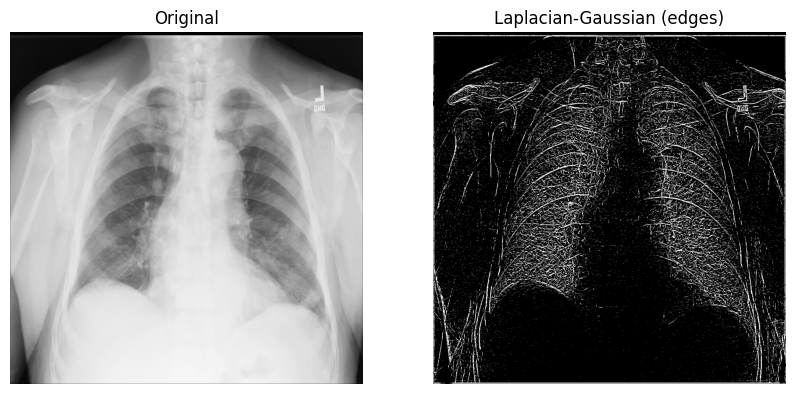
高斯梯度幅值方法
另一种有用的边缘检测方法是高斯(梯度)滤波器。它通过高斯导数计算多维梯度幅值,并有助于去除高频图像分量。
1. 使用sigma(标准差)参数(您将在下面的示例中使用2)调用scipy.ndimage.gaussian_gradient_magnitude()
x_ray_image_gaussian_gradient = ndimage.gaussian_gradient_magnitude(xray_image, sigma=2)2. 显示原始X光片和应用了高斯梯度滤波器的X光片
fig, axes = plt.subplots(nrows=1, ncols=2, figsize=(10, 10))

axes[0].set_title("Original")
axes[0].imshow(xray_image, cmap="gray")
axes[1].set_title("Gaussian gradient (edges)")
axes[1].imshow(x_ray_image_gaussian_gradient, cmap="gray")
for i in axes:
    i.axis("off")
plt.show()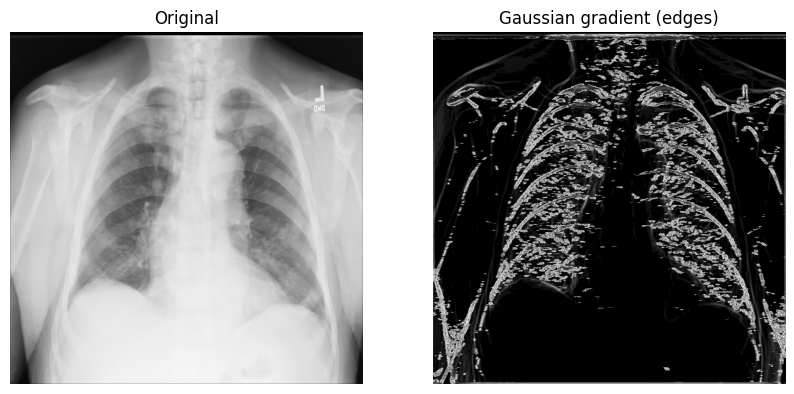
Sobel-Feldman算子(Sobel滤波器)
要找到2D X光图像在水平和垂直轴上的高空间频率区域(边缘或边缘图),您可以使用Sobel-Feldman算子(Sobel滤波器)技术。Sobel滤波器将两个3x3的核矩阵(每个轴一个)通过卷积应用于X光片。然后,使用勾股定理组合这两个点(梯度)以产生梯度幅值。
1. 在X光片的x和y轴上使用Sobel滤波器(scipy.ndimage.sobel())。然后,使用勾股定理和NumPy的np.hypot()计算x和y(已应用Sobel滤波器)之间的距离,以获得幅值。最后,对重新缩放的图像进行归一化,使像素值在0到255之间。
图像归一化遵循output_channel = 255.0 * (input_channel - min_value) / (max_value - min_value)公式。因为您使用的是灰度图像,所以只需要归一化一个通道。
x_sobel = ndimage.sobel(xray_image, axis=0)
y_sobel = ndimage.sobel(xray_image, axis=1)

xray_image_sobel = np.hypot(x_sobel, y_sobel)

xray_image_sobel *= 255.0 / np.max(xray_image_sobel)
2. 将新的图像数组数据类型从float16更改为32位浮点格式,以使其与Matplotlib兼容
print("The data type - before: ", xray_image_sobel.dtype)

xray_image_sobel = xray_image_sobel.astype("float32")

print("The data type - after: ", xray_image_sobel.dtype)
The data type - before: float16
The data type - after: float32
3. 显示原始X光片和应用了Sobel“边缘”滤波器的X光片。请注意,同时使用了灰度颜色映射和CMRmap颜色映射来帮助强调边缘
fig, axes = plt.subplots(nrows=1, ncols=3, figsize=(15, 15))

axes[0].set_title("Original")
axes[0].imshow(xray_image, cmap="gray")
axes[1].set_title("Sobel (edges) - grayscale")
axes[1].imshow(xray_image_sobel, cmap="gray")
axes[2].set_title("Sobel (edges) - CMRmap")
axes[2].imshow(xray_image_sobel, cmap="CMRmap")
for i in axes:
    i.axis("off")
plt.show()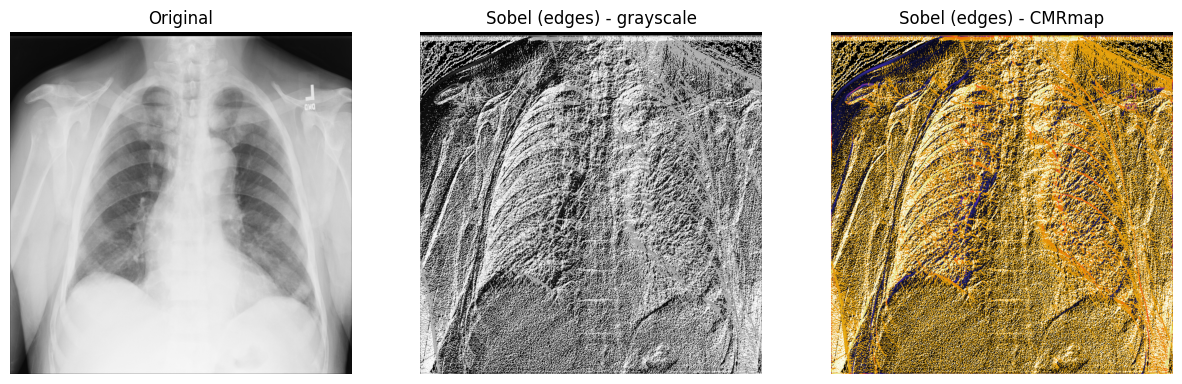
Canny滤波器
您还可以考虑使用另一种著名的边缘检测滤波器,称为Canny滤波器。
首先,应用高斯滤波器来去除图像中的噪声。在此示例中,您使用傅立叶滤波器,该滤波器通过卷积过程对X光片进行平滑处理。接下来,在图像的每个(2个)轴上应用Prewitt滤波器以帮助检测一些边缘 — 这将产生2个梯度值。与Sobel滤波器类似,Prewitt算子也通过卷积将两个3x3的核矩阵(每个轴一个)应用于X光片。最后,使用勾股定理计算两个梯度之间的幅值,并像之前一样归一化图像。
1. 使用SciPy的傅立叶滤波器(scipy.ndimage.fourier_gaussian())和较小的sigma值,以去除X光片中的一些噪声。然后,使用scipy.ndimage.prewitt()计算两个梯度。接下来,使用NumPy的np.hypot()测量梯度之间的距离。最后,像之前一样归一化重新缩放的图像。
fourier_gaussian = ndimage.fourier_gaussian(xray_image, sigma=0.05)

x_prewitt = ndimage.prewitt(fourier_gaussian, axis=0)
y_prewitt = ndimage.prewitt(fourier_gaussian, axis=1)

xray_image_canny = np.hypot(x_prewitt, y_prewitt)

xray_image_canny *= 255.0 / np.max(xray_image_canny)

print("The data type - ", xray_image_canny.dtype)
The data type - float64
2. 绘制原始X光图像以及使用Canny滤波器技术检测到边缘的图像。可以使用prism、nipy_spectral和terrain Matplotlib颜色映射来强调边缘。
fig, axes = plt.subplots(nrows=1, ncols=4, figsize=(20, 15))

axes[0].set_title("Original")
axes[0].imshow(xray_image, cmap="gray")
axes[1].set_title("Canny (edges) - prism")
axes[1].imshow(xray_image_canny, cmap="prism")
axes[2].set_title("Canny (edges) - nipy_spectral")
axes[2].imshow(xray_image_canny, cmap="nipy_spectral")
axes[3].set_title("Canny (edges) - terrain")
axes[3].imshow(xray_image_canny, cmap="terrain")
for i in axes:
    i.axis("off")
plt.show()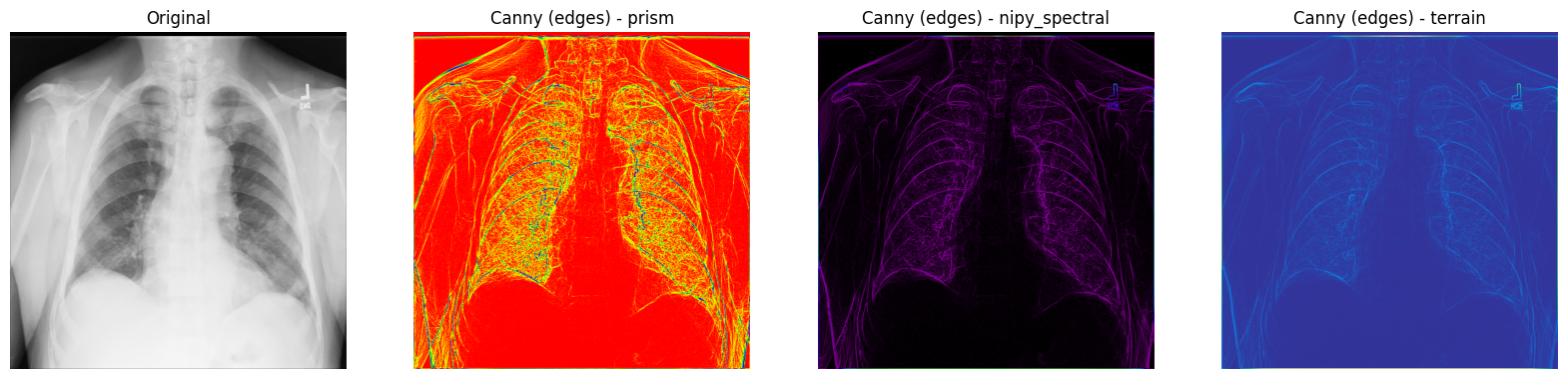
使用np.where()对X光片应用掩码
为了筛选出X光图像中的特定像素以帮助检测特定特征,您可以使用NumPy的np.where(condition: array_like (bool), x: array_like, y: ndarray)来应用掩码,它在条件为True时返回x,在条件为False时返回y。
识别感兴趣的区域 — 图像中的特定像素集合 — 可能很有用,掩码是与原始图像形状相同的布尔数组。
1. 获取您一直在使用的原始X光图像像素值的一些基本统计信息
print("The data type of the X-ray image is: ", xray_image.dtype)
print("The minimum pixel value is: ", np.min(xray_image))
print("The maximum pixel value is: ", np.max(xray_image))
print("The average pixel value is: ", np.mean(xray_image))
print("The median pixel value is: ", np.median(xray_image))
The data type of the X-ray image is: uint8
The minimum pixel value is: 0
The maximum pixel value is: 255
The average pixel value is: 172.52233219146729
The median pixel value is: 195.0
2. 数组数据类型为uint8,最小/最大值结果表明X光片使用了所有256种颜色(从0到255)。让我们使用ndimage.histogram()和Matplotlib可视化原始X光片的*像素强度分布*。
pixel_intensity_distribution = ndimage.histogram(
    xray_image, min=np.min(xray_image), max=np.max(xray_image), bins=256
)

plt.plot(pixel_intensity_distribution)
plt.title("Pixel intensity distribution")
plt.show()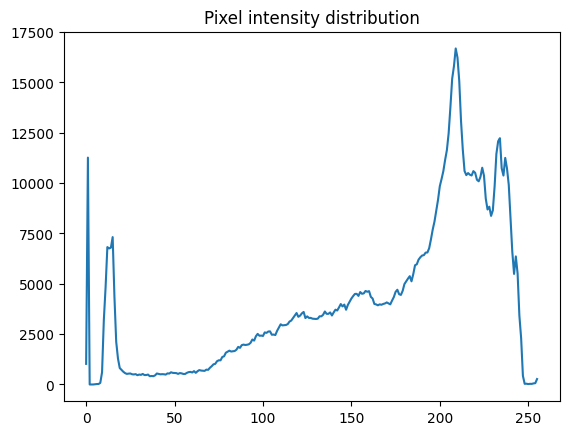
正如像素强度分布所示,有许多低(约0到20之间)和非常高(约200到240之间)的像素值。
3. 您可以使用NumPy的np.where()创建不同的条件掩码 — 例如,只保留那些像素值超过特定阈值的图像部分。
# The threshold is "greater than 150"
# Return the original image if true, `0` otherwise
xray_image_mask_noisy = np.where(xray_image > 150, xray_image, 0)

plt.imshow(xray_image_mask_noisy, cmap="gray")
plt.axis("off")
plt.show()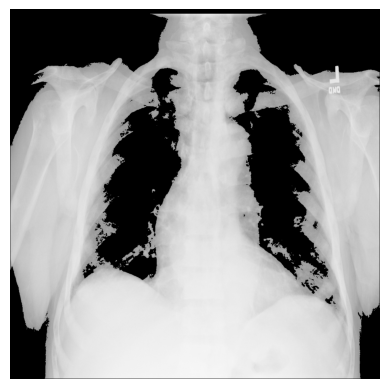
# The threshold is "greater than 150"
# Return `1` if true, `0` otherwise
xray_image_mask_less_noisy = np.where(xray_image > 150, 1, 0)

plt.imshow(xray_image_mask_less_noisy, cmap="gray")
plt.axis("off")
plt.show()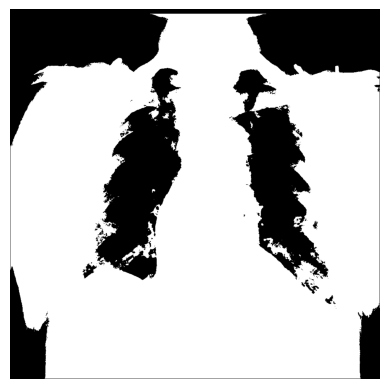
比较结果
让我们展示一些您迄今为止处理过的X光图像处理结果。
fig, axes = plt.subplots(nrows=1, ncols=9, figsize=(30, 30))

axes[0].set_title("Original")
axes[0].imshow(xray_image, cmap="gray")
axes[1].set_title("Laplace-Gaussian (edges)")
axes[1].imshow(xray_image_laplace_gaussian, cmap="gray")
axes[2].set_title("Gaussian gradient (edges)")
axes[2].imshow(x_ray_image_gaussian_gradient, cmap="gray")
axes[3].set_title("Sobel (edges) - grayscale")
axes[3].imshow(xray_image_sobel, cmap="gray")
axes[4].set_title("Sobel (edges) - hot")
axes[4].imshow(xray_image_sobel, cmap="hot")
axes[5].set_title("Canny (edges) - prism)")
axes[5].imshow(xray_image_canny, cmap="prism")
axes[6].set_title("Canny (edges) - nipy_spectral)")
axes[6].imshow(xray_image_canny, cmap="nipy_spectral")
axes[7].set_title("Mask (> 150, noisy)")
axes[7].imshow(xray_image_mask_noisy, cmap="gray")
axes[8].set_title("Mask (> 150, less noisy)")
axes[8].imshow(xray_image_mask_less_noisy, cmap="gray")
for i in axes:
    i.axis("off")
plt.show()
下一步
如果您想使用自己的样本,可以使用此图像,或在Openi数据库上搜索各种其他图像。Openi包含许多生物医学图像,如果您带宽较低或受限于可下载的数据量,它会特别有帮助。
要了解更多关于生物医学图像数据的图像处理或边缘检测,以下材料可能对您有所帮助
使用Numpy和Scipy进行图像操作和处理(Scipy讲义)
强度值(演示文稿,DataCamp)
使用Raspberry Pi和Python进行物体检测(Maker Portal)
使用深度学习进行X光数据准备和分割(Kaggle托管的Jupyter笔记本)
图像滤波(讲义,CS6670:计算机视觉,康奈尔大学)
使用Scikit-Image进行边缘检测(Data Carpentry)
图像梯度和梯度滤波(讲义,16-385计算机视觉,卡内基梅隆大学)